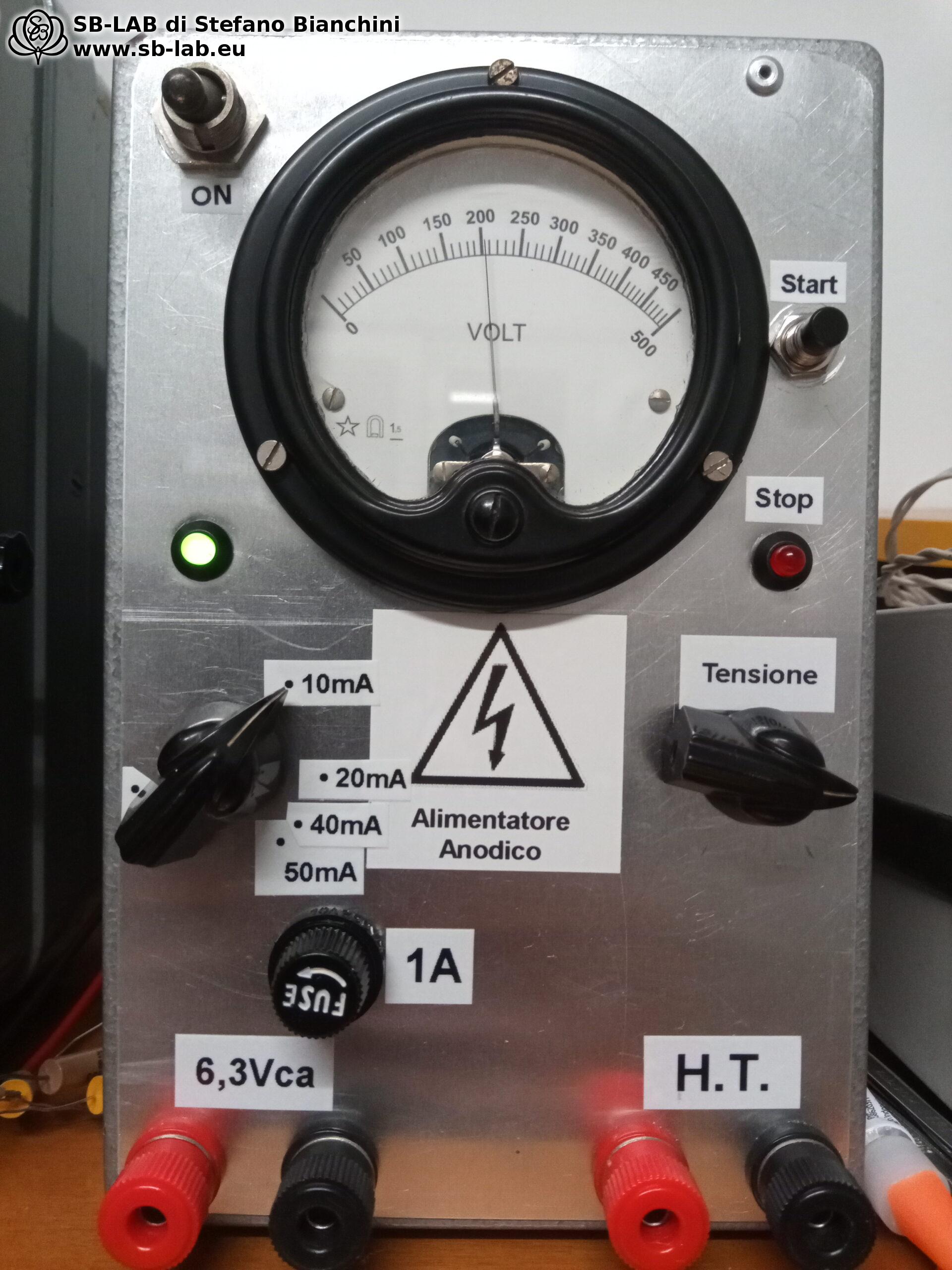
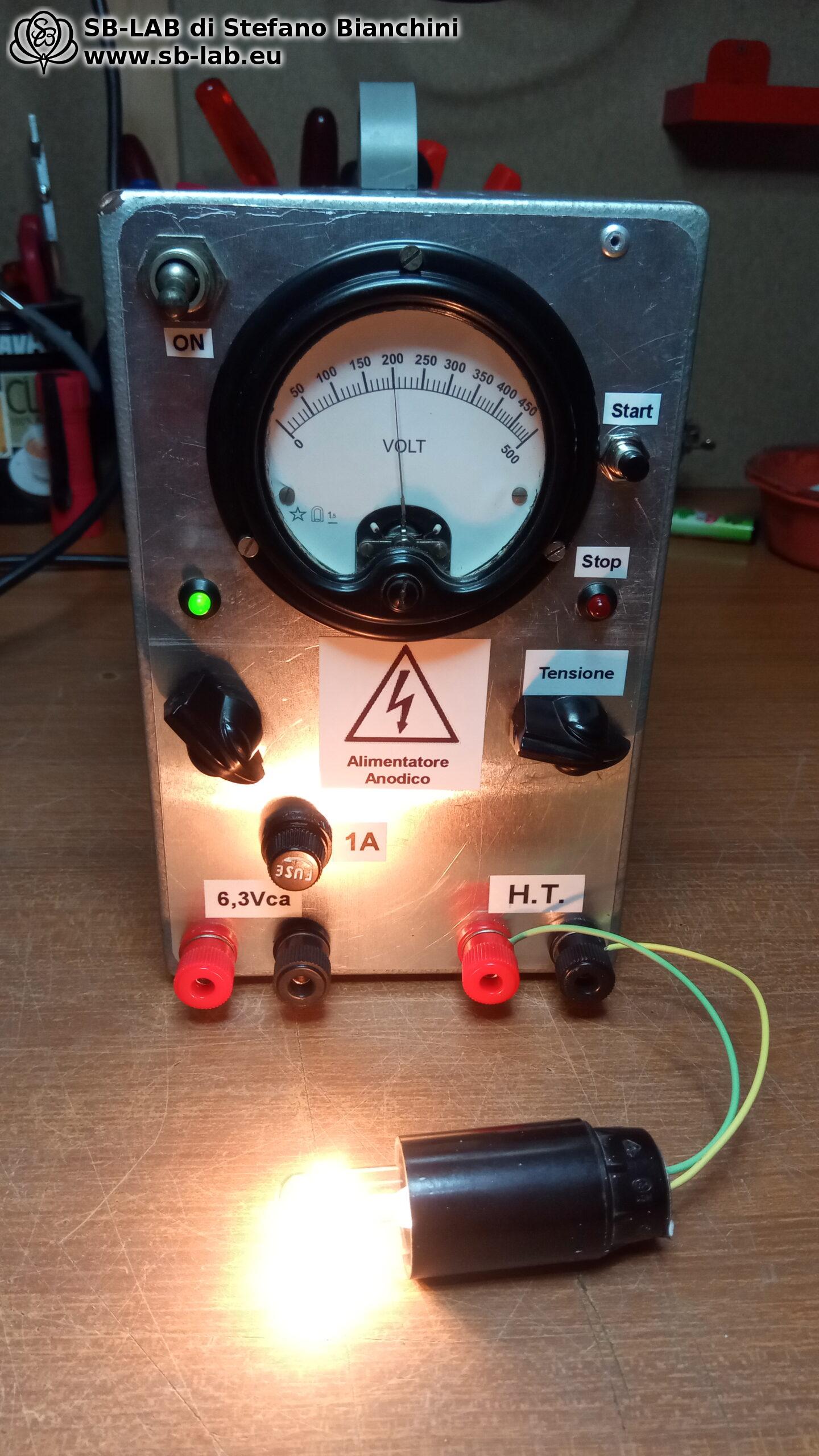
Hello everyone. Today I want to share with you a recent experience that led me to pick up again a project I had built as far back as 10 years ago, when I was still just a simple hobbyist. Recently, I was contacted by an electronic components wholesaler who needed to reform a fairly large batch of Nichicon electrolytic capacitors that had remained in storage.
These capacitors had to be reformed before they could be sold, and the batch contained as many as 500 pieces. They were large capacitors rated at 3900uF 500 volts, so my old regenerator needed a few modifications to handle them properly. It was also a pleasure to dig this old project out of my archive and work again on the article I had published on the site many years ago.
I still remember the excitement I felt when I saw my regenerator working well the first time I built it. This time, however, the challenge was different, because I had to deal with a large number of big capacitors with demanding characteristics. For this reason, I decided to improve and optimize the device, making the system more precise and efficient and adding a few more checks during the reforming process.
What does reforming a capacitor mean?
Reforming electrolytic capacitors is a practice used to bring capacitors that have remained inactive for a long time back to normal operating condition. When a new capacitor, or in any case one that is still good, sits unused for years, it may lose its operating characteristics because of deterioration of the dielectric layer. Before putting it back into service, it is therefore advisable to “wake it up” with a reforming process, applying voltage gradually and limiting the charging current. In this way the internal oxide layer is properly rebuilt, and this is exactly where the term “reforming” comes from.
Reforming therefore consists of applying a controlled voltage to the capacitor, with limited current, for a time that is not predetermined, until the component reaches its rated voltage with a very low leakage current, ideally close to zero. It is important that the current be limited, because charging it too aggressively could cause internal discharges or even damage the capacitor.
Through reforming, the goal is to recover the capacitor’s correct behavior, bringing it as close as possible to its normal operating values. It should be remembered, however, that this procedure is useful only when the component has simply lost efficiency because of long inactivity. If the capacitor is already compromised, or has reached end of life, reforming cannot work miracles and the component must be replaced.
The regenerator
Electrolytic capacitor reforming can be done in various ways, for example by using a variac or a series resistor to charge the capacitor slowly. These are simple methods, but they also have limits. The times can become very variable, current control is not always adequate and, if care is not taken, the component may be stressed unnecessarily.
To overcome these limits, I preferred to use a circuit with its own operating logic. This circuit applies trains of fast but non-destructive pulses to the capacitor, continuously monitoring the absorbed current. Every time the current exceeds a certain set value, for example 10mA, the circuit introduces a pause between one pulse train and the next, giving the capacitor the time it needs to reform its internal elements.
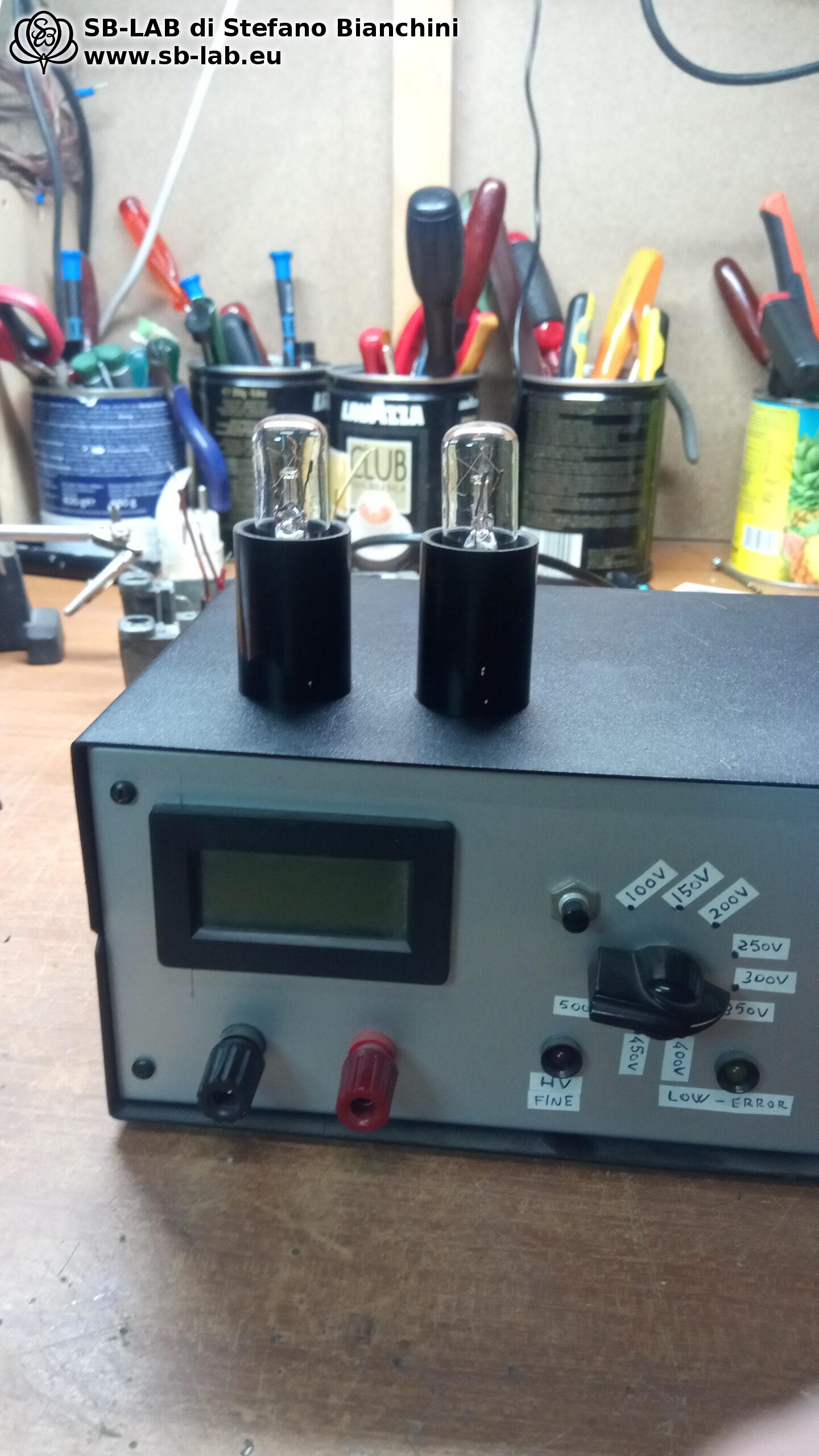
The process continues until the capacitor reaches the desired rated voltage with absorption close to zero. At that point the capacitor is discharged through a pair of light bulbs. Before the June 2023 modification, a resistor was simply used for the discharge, but with large capacitors like the ones I now have to reform, the heat dissipation problem became annoying. For this reason, I adopted a simple but effective solution, that is, two 3 candlepower 230 volt bulbs, the kind used in refrigerators, connected in series.
This system makes it possible to reduce reforming times and adapts fairly well to the behavior of the individual capacitor. In practice, it is the capacitor itself, through its absorption, that sets the pace of the process. From the tests I had already carried out before 2013, pulse-train reforming had proven to be as effective as the constant-current method, but noticeably faster. That is why I continued along this path.
An essential instrument for those who repair vintage radios and tube amplifiers
This instrument proves very useful for those involved in the repair and restoration of vintage radios and tube amplifiers. When trying to bring equipment back into operation after it has sat unused for decades, it is often necessary to reform the old electrolytic capacitors, at least when they are still recoverable. Thanks to this device, I have managed to bring capacitors from the 1940s back into service, allowing the proper restart of historic equipment. In the case of audio amplifiers, preserving the old electrolytics, when possible, can also help maintain the original sonic character of the equipment, avoiding unnecessarily invasive replacements.
The construction
I therefore set to work carrying out some experiments on a breadboard using a Picaxe 18M2 microcontroller as the circuit’s processing unit.
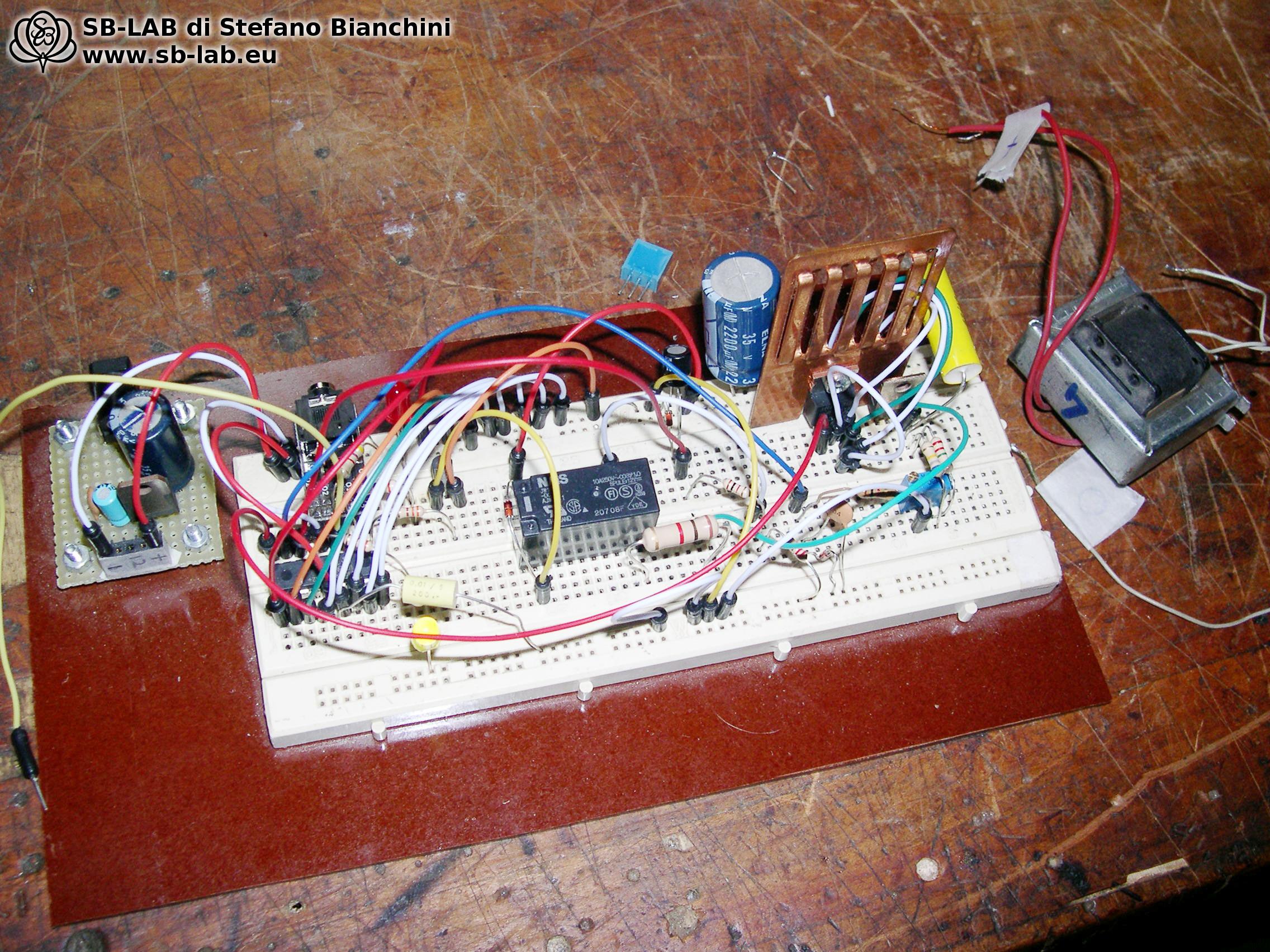
I developed an analog stage using a flyback transformer as the central element. To build it, I used a small output transformer recovered from a scrapped tube radio, connected in reverse. The power FET is driven on the secondary side, while the high voltage is taken from the primary. The Picaxe 18M2 microcontroller is responsible for generating PWM pulse trains to control the FET and for measuring both the voltage across the capacitor during charging and the absorbed current.
In practice, the flyback is able to generate more than 700 volts DC at no load, with a short-circuit current of 30mA. Naturally, the MCU limits the maximum voltage reached by the capacitor during charging and, above all, limits the average absorbed current to 10mA. The amplitude and current of the pulses remain constant, while the duration of the pulse trains and the pause between one train and the next change. This method, which on paper may seem a bit aggressive, works very well in practice. I managed to reform several capacitors picked at random from the “cadaver” box, including a couple that had not recovered with the old constant-current regenerator, and in fairly short times.
Let us take a look at the construction of the device. I grabbed a random transformer from the pile of salvaged parts…
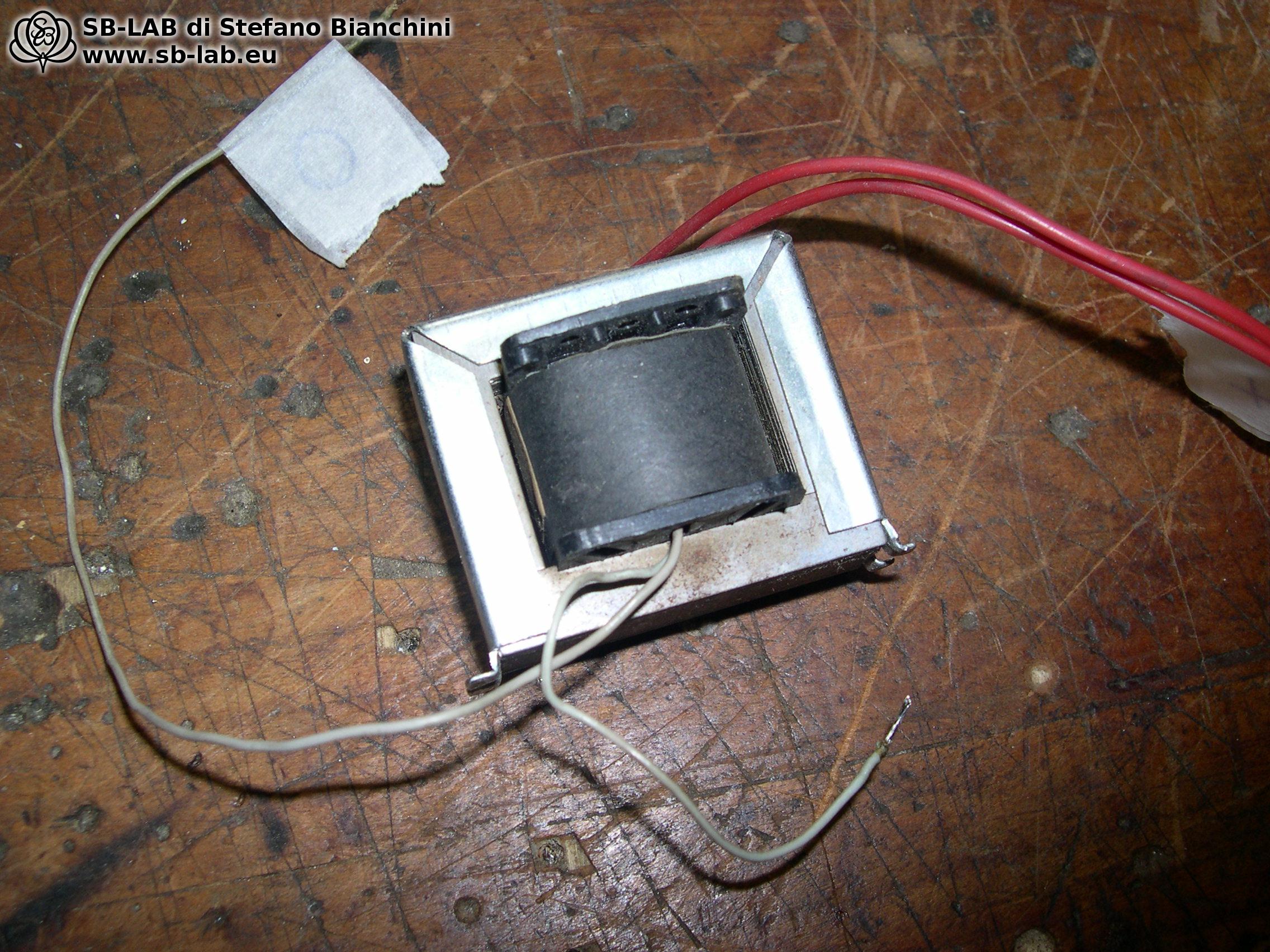
During operation, the transformer I had used was noisy. To solve the problem, I decided to immerse it in wax so as to silence it as much as possible. After all, the poor transformer was not born to handle 15 watts of modulated square waves, with currents reaching almost 1A on the secondary. It was a simple remedy, but it worked well.
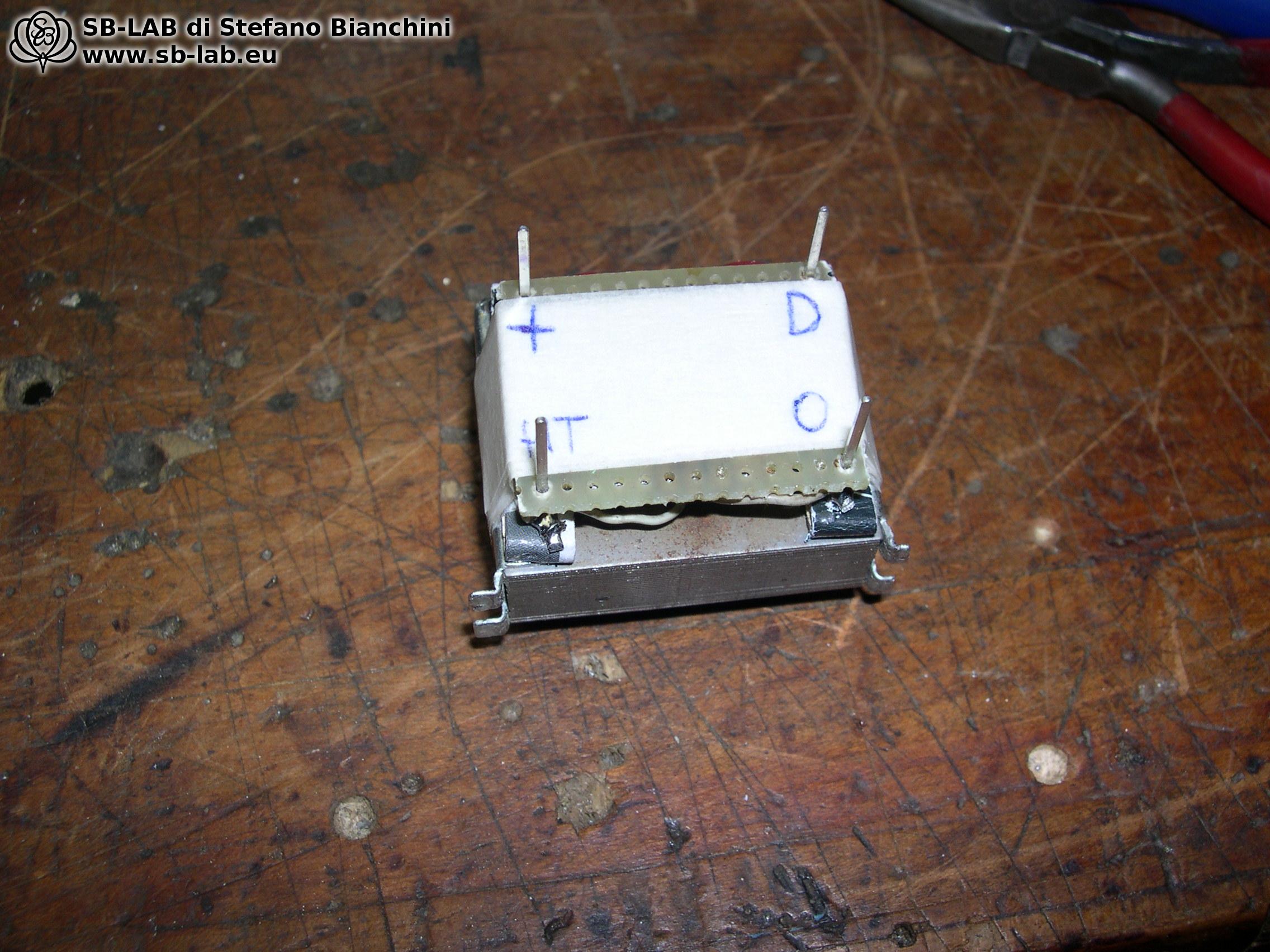
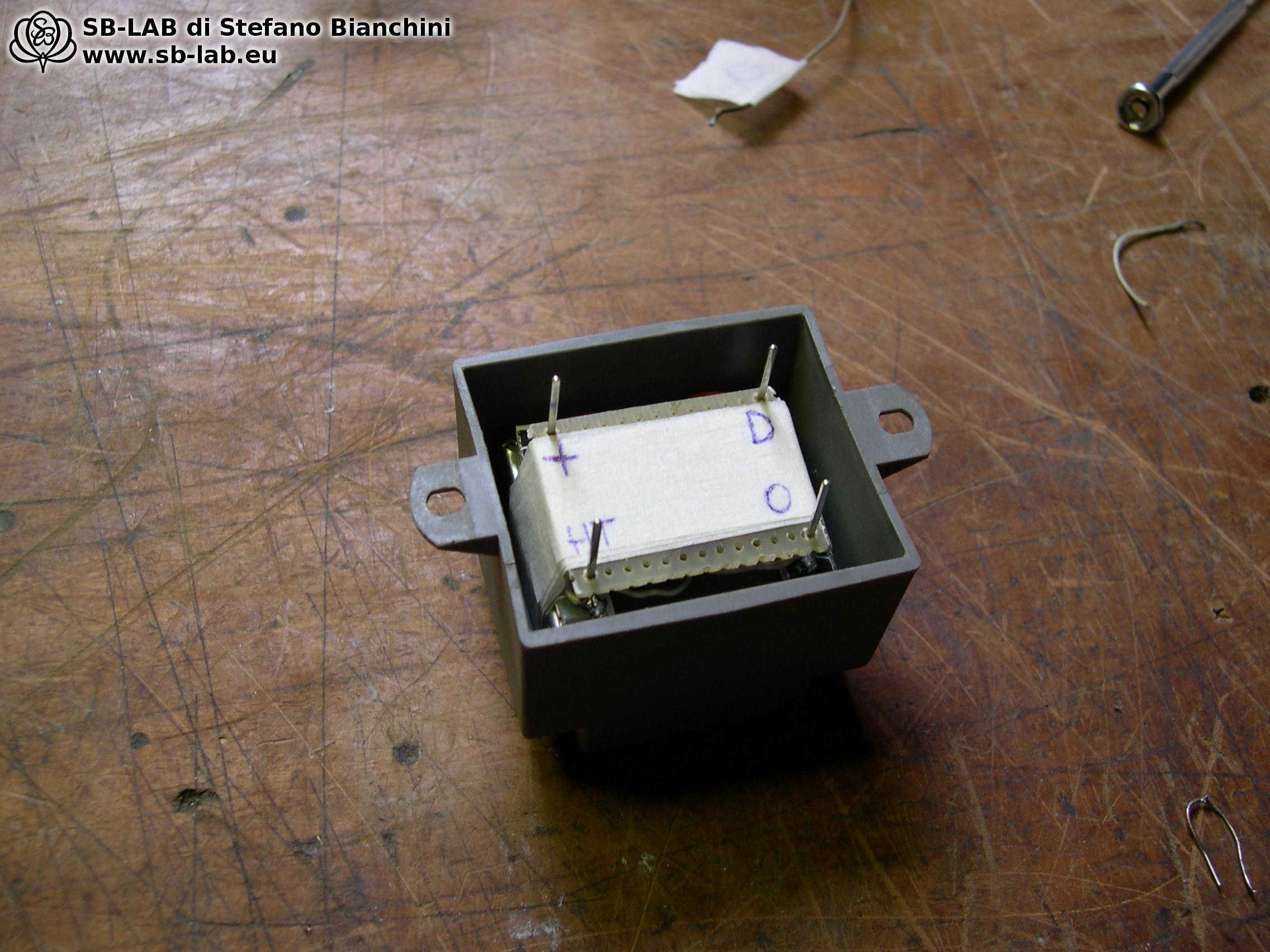
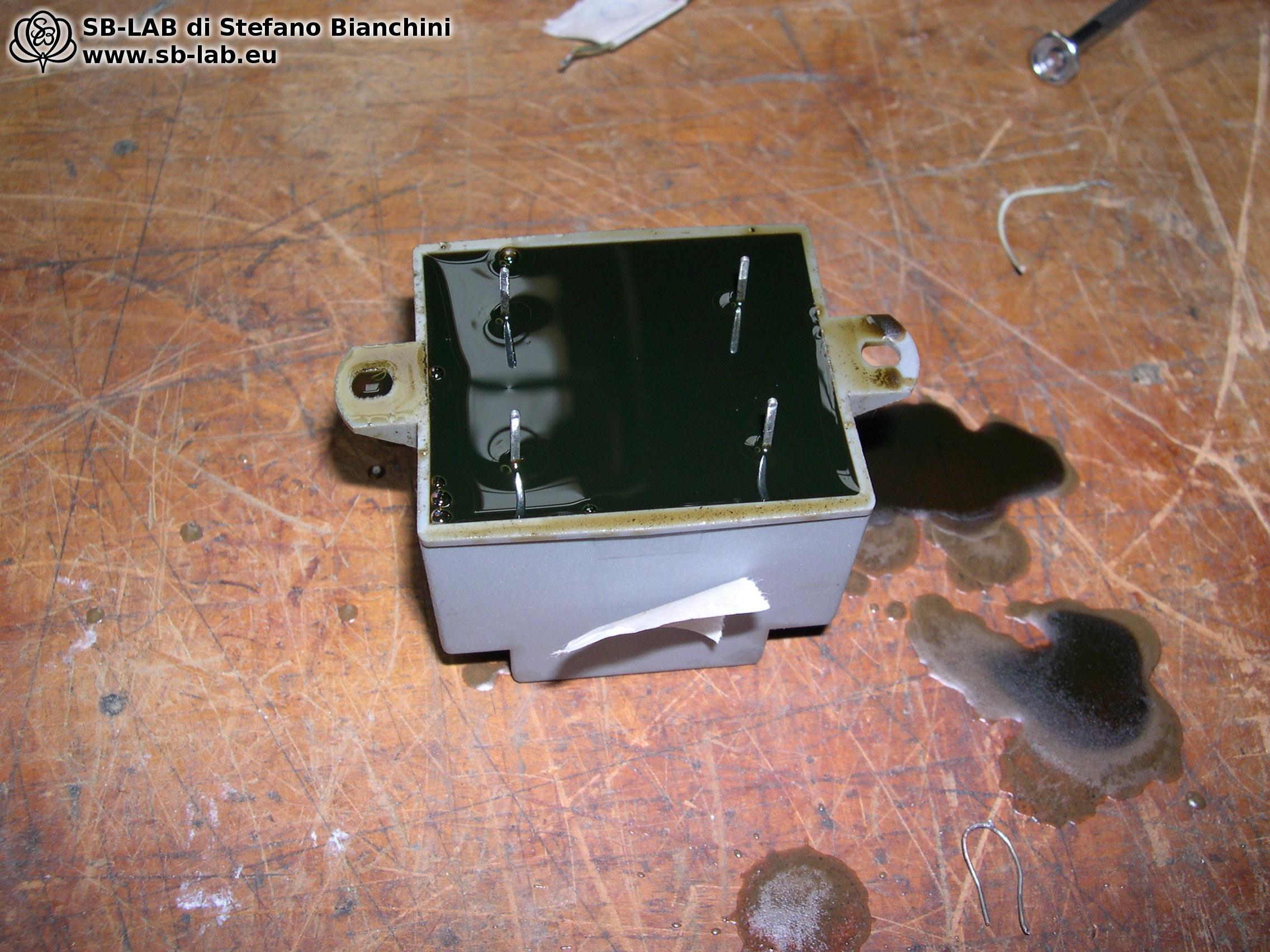
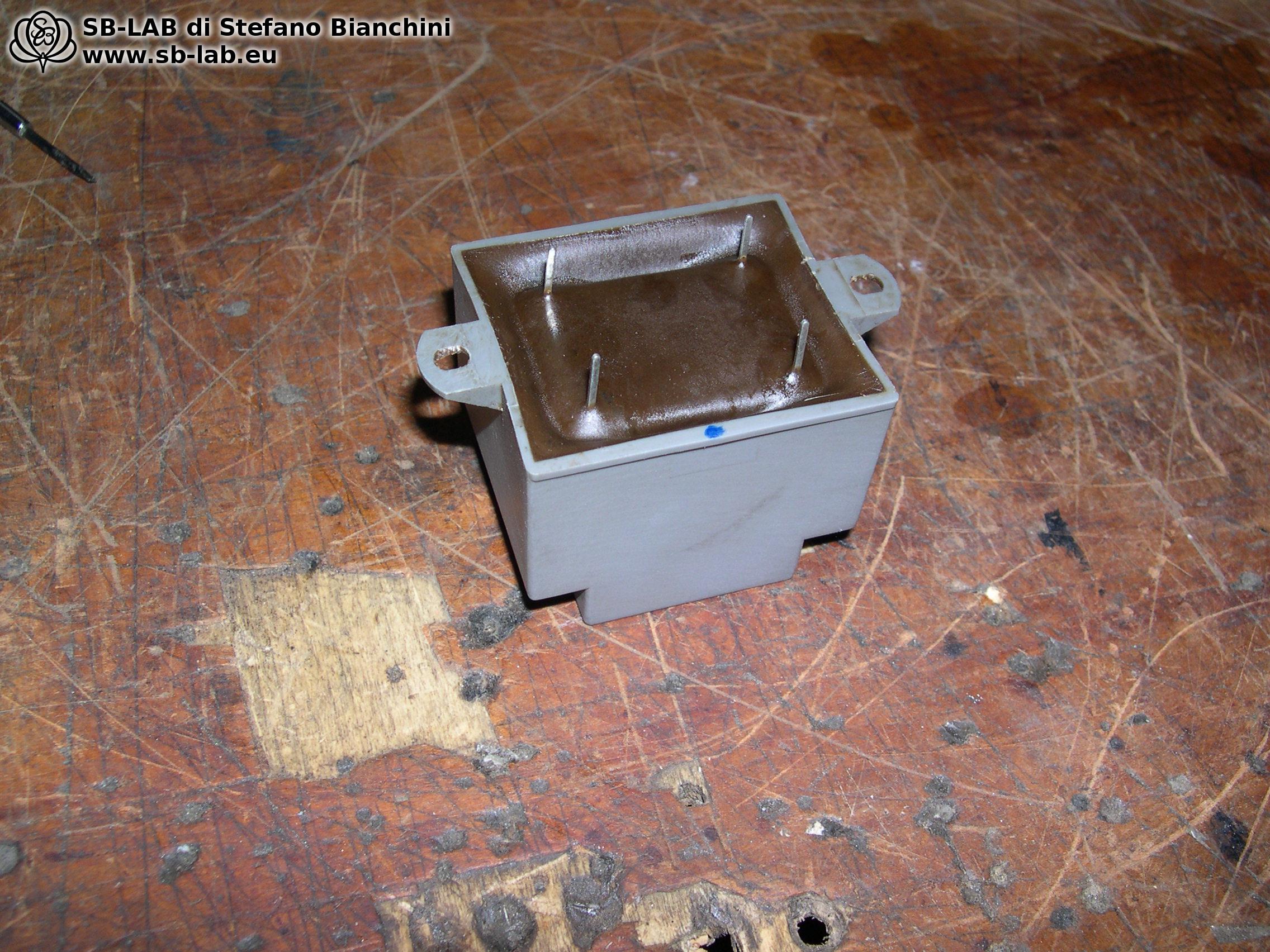
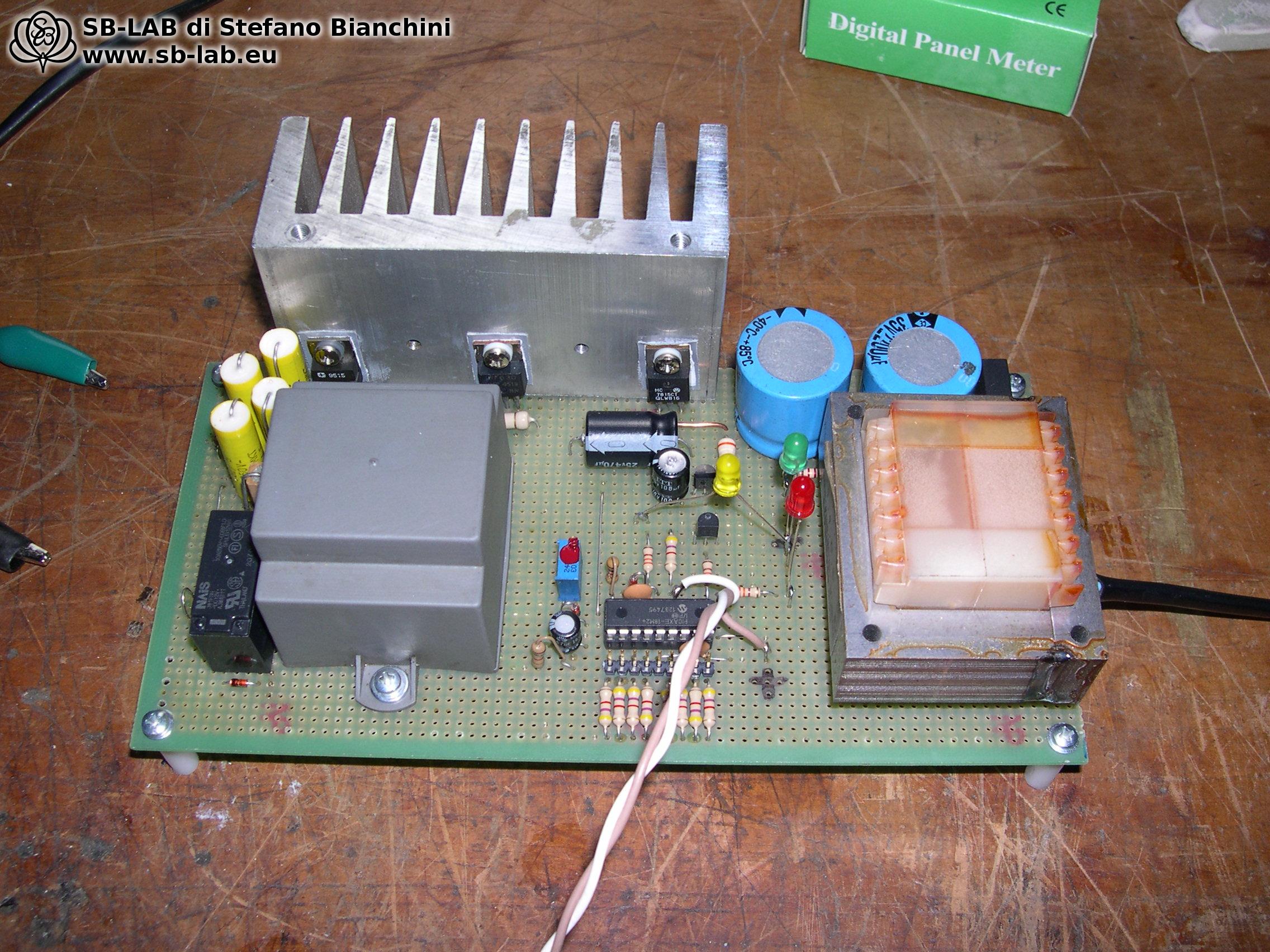
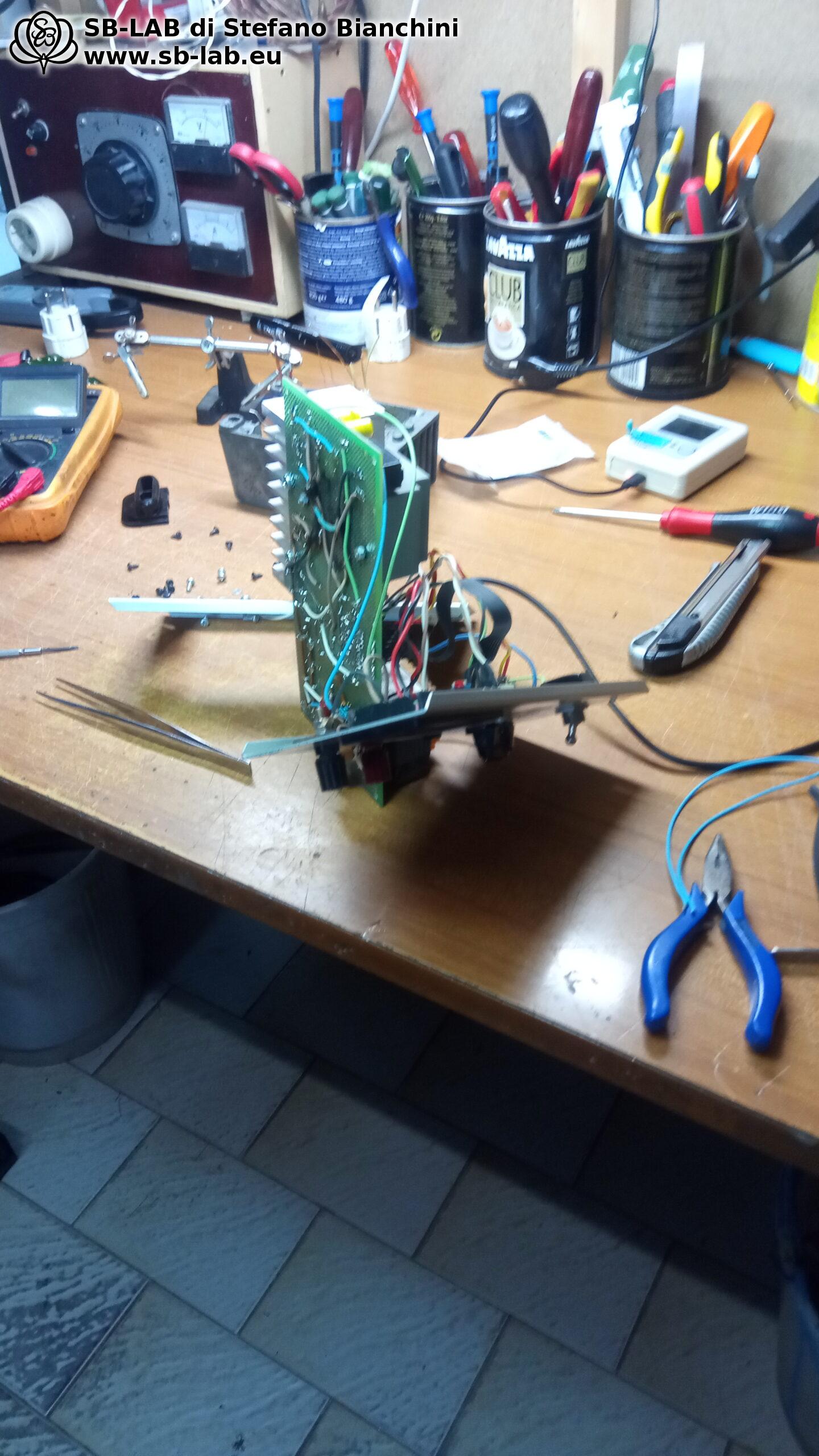
I was surprised by how effective the wax immersion was in reducing the noise emitted by the circuit. The result was so good that the noise practically disappeared. Below you can see a photo of the circuit assembled on a 1000-hole breadboard before being mounted in the final enclosure. As you can see, the LEDs are connected provisionally only for testing.
Here is the schematic, click to enlarge:
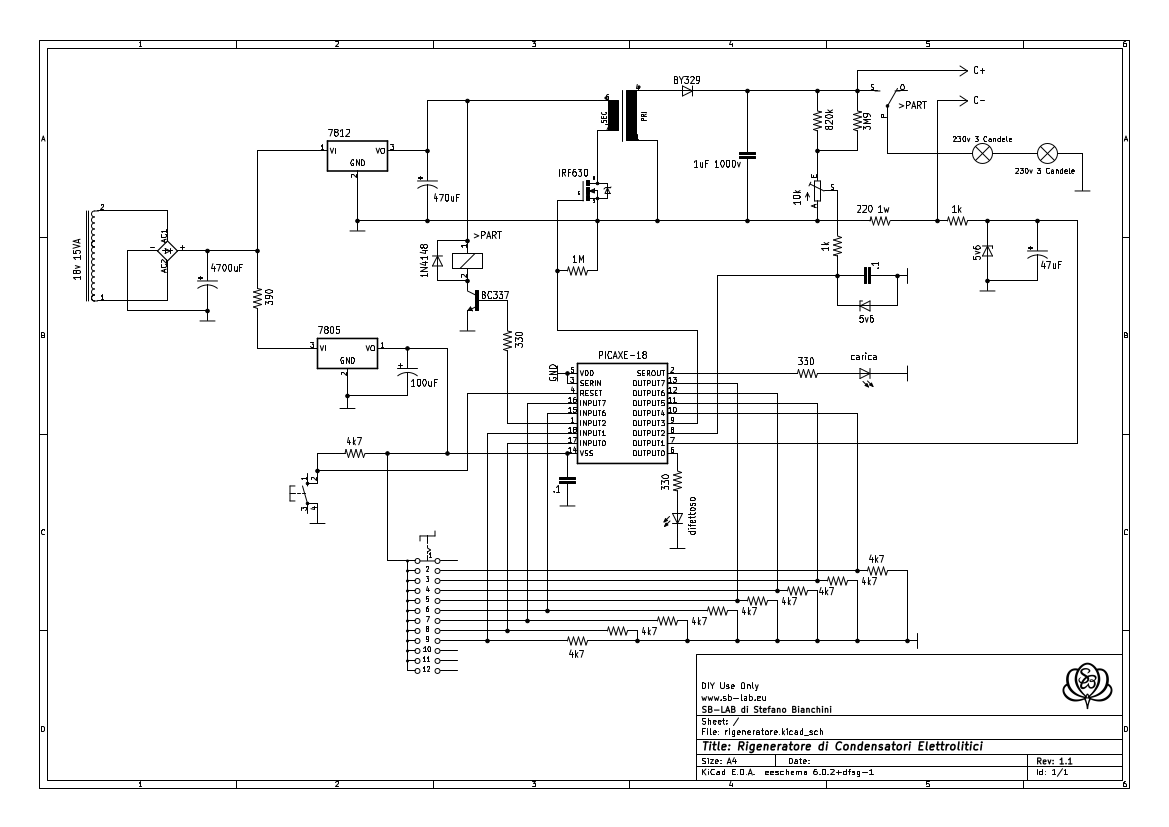
Click here to download the schematic in PDF format: rigeneratore.pdf
Below I report the firmware source in basic. Yes, it is true, I do not particularly like Basic and today I prefer Arduino and the C language.
; Sorgente del rigeneratore di condensatori, versione 1.1v, www.sb-lab.eu, questo programma e' sottoposto a licenza GPL v.2

#no_data
#picaxe 18m2

setfreq m16 ; frequenza della CPU a 16mhz

symbol pwmdri = B.3
symbol caricaled = C.3
symbol volt_pin = B.2
symbol tensione = b0
symbol preset = b1
symbol speed = b2
symbol corrente = b3
symbol ritardo = b4
symbol volano = b5
symbol noblinc = b6
symbol nvolte = b7
symbol pin150 = pinB.4
symbol pin200 = pinB.5
symbol pin250 = pinB.6
symbol pin300 = pinB.7
symbol pin350 = pinC.6
symbol pin400 = pinC.7
symbol pin450 = pinC.0
symbol pin500 = pinC.1
symbol rl = C.2
symbol pulsante = pinC.5
symbol amp_pin = B.1
symbol low_led = B.0

; routines per la taratura della parte analogica (pin500 e pin450 collegati al +5v)
if pin500 = 1 and pin450 = 1 then
	goto tara
endif

; stato di riposo, attende che venga premuto il tasto start/stop
main:
setint off ; disattiva l'interrupt
gosub scarica
gosub hv_off
low caricaled
let nvolte = 0
wait 3
do
if pulsante = 1 then
	exit
endif
loop

; Legge quale tensione e' stata selezionata, va alla subroutines di preset, poi avvia il loop rigenera
seleziona:
wait 3

setint %00100000,%00100000 ; setta l'interrupt che permette di fare lo stop immediato del processo di rigenerazione in qualsiasi momento venga premuto il tasto start/stop

do
if pin150 = 1 then
	gosub v150
elseif pin200 = 1 then
	gosub v200
elseif pin250 = 1 then
	gosub v250
elseif pin300 = 1 then
	gosub v300
elseif pin350 = 1 then
	gosub v350
elseif pin400 = 1 then
	gosub v400
elseif pin450 = 1 then
	gosub v450
elseif pin500 = 1 then
	gosub v500
else
	gosub v100
endif
gosub rigenera
loop

; inizia il loop di rigenerazione del condensatore
rigenera:
let noblinc = 0 ; serve a evitare il blinc del led giallo (basso assorbimento) nei primi istanti di carica
let volano = 150 ; serve a dare una prima botta di carica che dura tot millisecondi (tanti quanti il valore specificato)
		 ; prima del primo campionamento degli adc, per evitare che il processo si fermi con un'errore di condensatore non connesso

do
let corrente = 0 ; azzera i registri corrente e tensione
let tensione = 0
low low_led ; spegne l'indicazione di basso assorbimento
high caricaled ; accende il led che indica l'inizio della carica del condensatore da rigenerare
gosub hv_on ; attiva l'alta tensione
pause volano ; fa una pausa, con l'alta tensione attiva, prima di campionare tensione e corrente, il valore viene cambiato con quello del preset alla fine del primo loop

readadc amp_pin, corrente ; campiona i valori analogici di corrente e tensione con l'adc a 8 bit
readadc volt_pin,tensione

if corrente > 100 then ; se la corrente supera il valore impostato spegne il generatore di alta tensione
	gosub hv_off
	pause 5
elseif corrente < 50 then ; se la corrente e' al di sotto del valore impostato entra nello stato di errore condensatore non connesso
	gosub hv_off
	low caricaled
	gosub scarica
	do
		high low_led
		wait 1
		low low_led
		wait 1
	loop
elseif corrente < 95 and noblinc > 5 then ; se la corrente e' al di sotto del valore impostato accende il led giallo che segnala il basso assorbimento, ma solo dopo 5 cicli del loop
	high low_led
elseif tensione > preset and corrente > 50 then ; se il valore di tensione misurato e' superiore al preset e la corrente assorbita non e' al di sotto del valore specificato termina il ciclo con la scarica del condensatore
	gosub hv_off
	wait 5
	low caricaled
	gosub scarica
	return
endif

let noblinc = noblinc +1 ; incrementa il registro antiblincamento
let volano = ritardo ; al termine del primo loop imposta il valore del registro volano dal valore lungo necessario al primo campionamento a quello corto impostato nel preset
loop

; preset per le varie tensioni

v100:
let preset = 66
let speed = 2
let ritardo = 5
return

v150:
let preset = 100
let speed = 0
let ritardo = 2
return

v200:
let preset = 135
let speed = 0
let ritardo = 2
return

v250:
let preset = 165
let speed = 0
let ritardo = 2
return

v300:
let preset = 195
let speed = 0
let ritardo = 2
return

v350:
let preset = 218
let speed = 1
let ritardo = 5
return

v400:
let preset = 237
let speed = 1
let ritardo = 5
return

v450:
let preset = 246
let speed = 1
let ritardo = 5
return

v500:
let preset = 254
let speed = 1
let ritardo = 5
return

; routines di scarica del condensatore
scarica:
low low_led
; attivo il rele' che scarica il condensatore sulla lampadina
high rl
; controllo la tensione fino a che si approssima a zero quindi disattivo il rele'
do
  wait 2
  readadc volt_pin,tensione
loop while tensione != 0
low rl
if nvolte = 1 then ; se sono stati fatti 2 cicli di scarica si ferma e da segnale di completo
	do
	high caricaled
	pause 250
	low caricaled
	pause 250
	loop
endif
let nvolte = nvolte + 1
return

; routines di taratura del trimmer di misura della tensione
tara:
setint %00100000,%00100000
do
gosub v500
gosub hv_on
pause 100
readadc volt_pin,tensione

if tensione > preset then
	gosub hv_off
	pause 5
endif
loop

; attiva il segnale pwm per la generazione dell'alta tensione con frequenze e dutycicle diversi in base al valore impostato nel preset.
hv_on:
if speed = 0 then
	pwmout pwmdri,66,187 ; 15khz 70%
elseif speed = 1 then
	pwmout pwmdiv4, pwmdri, 249, 800 ; 1khz 80%
elseif speed = 2 then
	pwmout pwmdiv16, B.3, 124, 250 ; 500hz 50%
endif
return

; routines di spegnimento dell'alta tensione
hv_off:
pwmout pwmdri,off
return

; routines dell'interrupt per lo stop rapido del ciclo di carica (resetta il chip).
interrupt:
reset
IMPORTANT NOTE about the transformer: it is essential to understand that not all transformers are suitable for this circuit. To test the transformer and calibrate the trimmer that limits the voltage to 500 volts, I included a specific procedure in the microcontroller that works as follows: before powering up the circuit, the rotary switch that selects the various voltages must be disconnected and the two pins corresponding to the 450V and 500V steps of the selector must be connected to +5V. At that point the circuit is powered up. During startup, if the microcontroller finds these two pins high, it activates the high-voltage generator at maximum power, without current limiting.
At the transformer output, in place of the capacitor, a load resistor of EXACTLY 50k must be connected, capable of dissipating at least 5 watts for about ten seconds without overheating. In this configuration, the trimmer is adjusted until a voltage of 500 volts is measured across the resistor with a tester. If the voltage is much lower and cannot be increased, it is worth trying to reverse the secondary or primary leads of the transformer. Since the square waveform is asymmetrical, rectifying one half-wave rather than the other can produce significant differences. If even then the required voltage cannot be obtained, it simply means that transformer is not suitable for this circuit.
In the microcontroller program I included various presets corresponding to the different voltages to be generated, and each preset has a specific driving frequency. This choice came from a few considerations made during the development of the circuit.
The reference transformer I had used showed greater efficiency in power transfer, therefore voltage and current, at lower frequencies, around 1kHz. However, at that frequency the transformer made more noise and the power FET ran hotter. On the other hand, at higher frequencies, for example 15kHz, the mechanical vibration of the transformer decreased and the FET dissipated less, but the output voltage could not exceed 320 volts.
To work around this limitation, I therefore implemented different presets in the microcontroller. Each preset sets the parameters according to the desired voltage. For voltages between 150 and 300 volts, the circuit works at 15kHz with a duty cycle of 70%. For voltages between 350 and 500 volts, it works at 1kHz with a duty cycle of 80%. For the 100 volt preset, on the other hand, the circuit works at 500Hz with a duty cycle of 50%.
A note should be made about the 100 volt preset. Since the microcontroller works sequentially, sending a certain number of pulses to the capacitor before measuring voltage and current, with small-capacitance capacitors it happened that it could not stop the high voltage in time. As a result, at the moment of sampling, the voltage was almost always above 160 volts. To solve the problem I added a preset that would deliver less power with each individual pulse, so that, with smaller charging steps, the microcontroller would have time to intervene before exceeding 100 volts.
Even though the first calibration is done on a resistor, further adjustments can still be made to the trimmer afterward. Small corrections can be made using test capacitors in good condition that do not need reforming. It should be kept in mind, however, that with 500 volts at the output of the high-voltage circuit, 5 volts must be obtained at the output of the trimmer, no more, because the ADC cannot read higher voltages and because the 5.6 volt protection zener that protects the chip would come into operation.
In addition, it is possible to act on the value of the “preset” register to modify the voltage at which the microcontroller starts the discharge sequence. I set all voltages so that they exceed the desired maximum value by 5 or 10 volts, in order to ensure more complete capacitor reforming.
It may also be necessary to modify the frequencies and duty cycles set in the “hv_on:” routine if the transformer is changed. In that case, a few tests are needed to find the optimal values. The important thing is to make sure that the circuit can provide the required voltage with a current of 10mA, gradually increasing the value of the test resistors.
If the microcontroller should stop immediately after the first charging pulse, as indicated by the flashing LED that signals the capacitor is not connected, it is possible to act on the “ritardo” register in the presets. This register establishes the waiting time between enabling HV and sampling voltage and charging current. If the delay is too short compared with the frequency response of the high-voltage generator and the low-pass filters present at the output of the dividers, sampling may occur before a measurable voltage forms across the current sensing divider, made up of a 220 ohm resistor connected between ground and the negative terminal of the capacitor. In that case, the program may believe that no capacitor is connected and jump to the error routine.
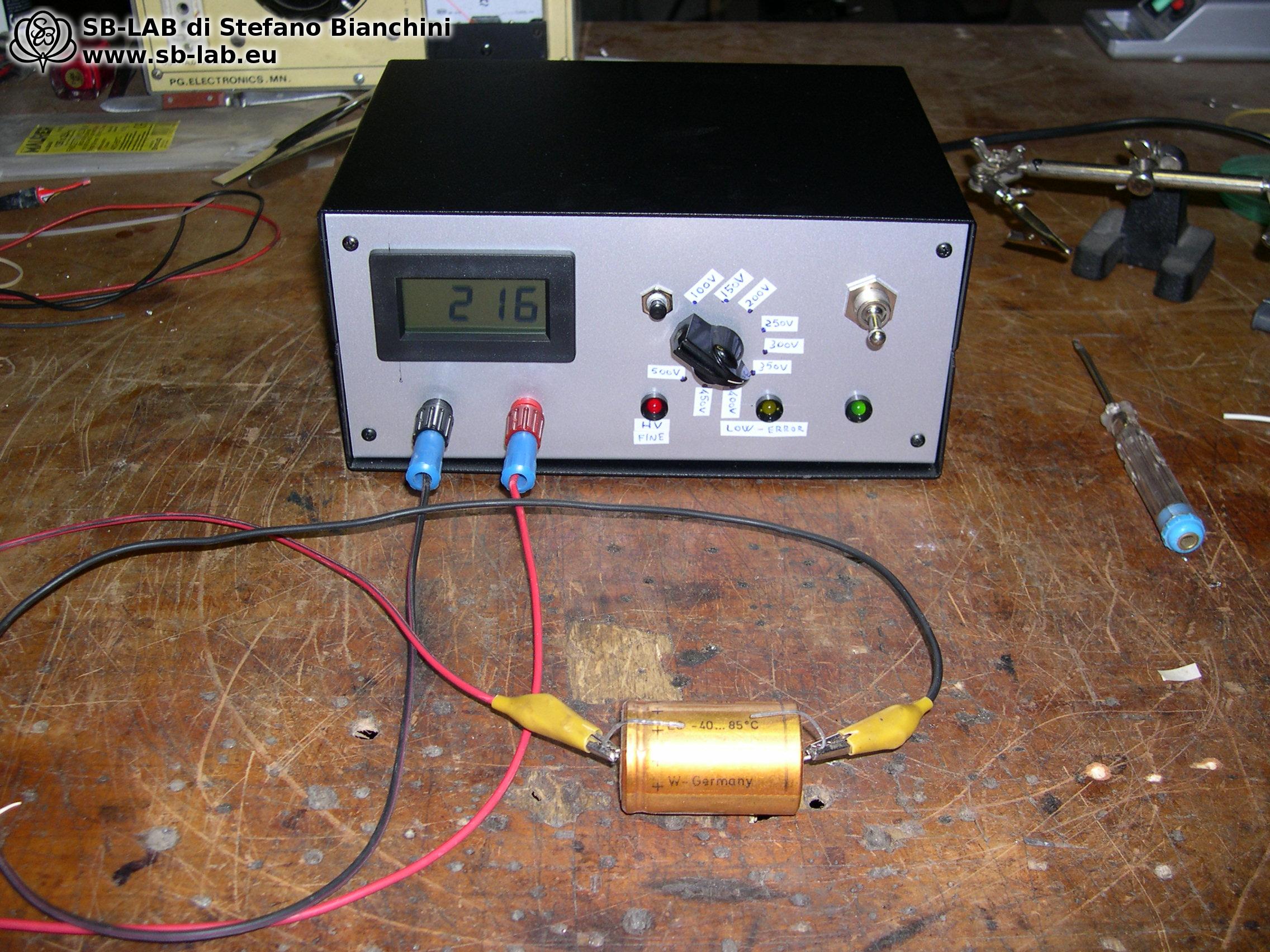
A few tricks
Over the years I used this regenerator, I learned a few little tricks that might be useful to you. If you are reforming an old capacitor, for example one installed in a vintage amplifier or antique radio, and you notice that the voltage stops rising and stalls at a certain value, perhaps with slight warming of the capacitor after a few minutes, I suggest interrupting the process by pressing the start/stop button. Let a few hours pass and try again. Often, on the next cycle, the reforming completes without problems. If instead it always stops at the same voltage, then that capacitor should be considered no longer usable.
At the end of the reforming process it is always advisable to measure the capacitance and ESR of the capacitor to check whether the parameters are acceptable. For greater peace of mind, I also recommend a further reforming cycle after 24 hours. If the capacitor is truly in good condition, at that point it will charge quickly and effortlessly, almost like a new component. If, on the other hand, charging becomes slow again, something I have rarely seen but that can happen, the capacitor is not reliable and it is better to discard it. Naturally, if it shows electrolyte leakage, present or past, it must be thrown away without thinking twice.
Modification carried out in 2023 to handle very large capacitors
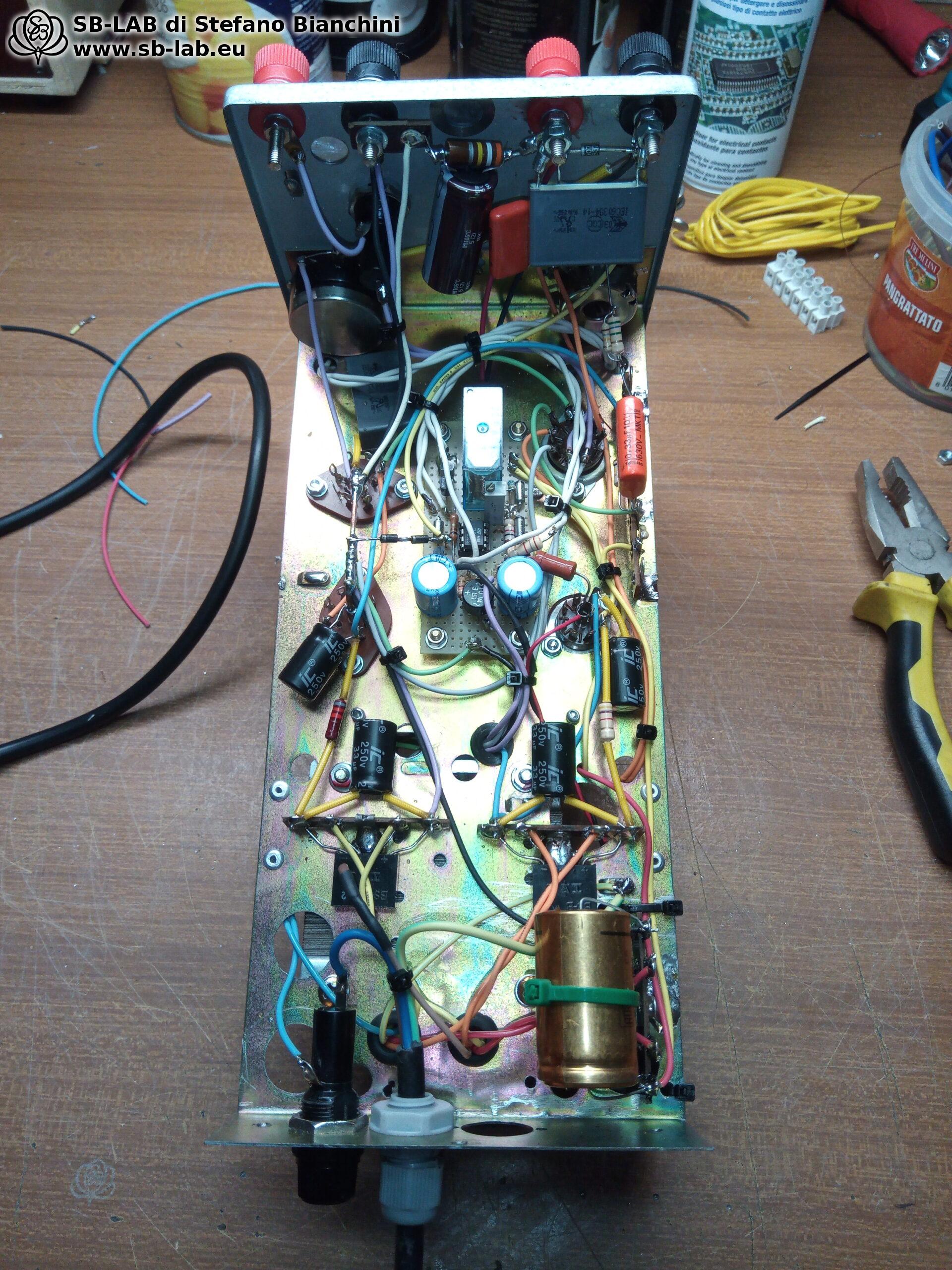
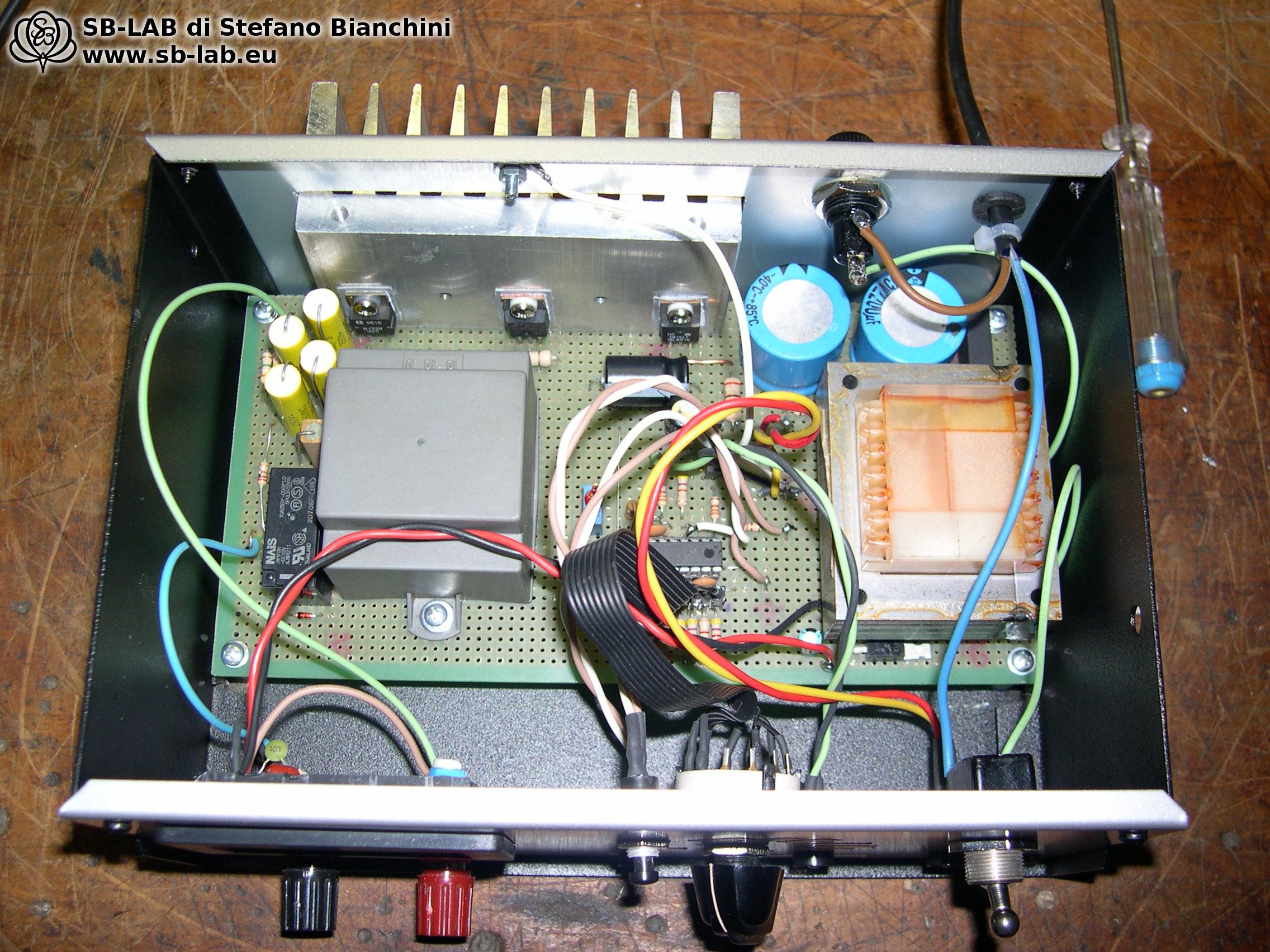
To solve the space problem inside the metal box, I chose a quick and very practical solution. I drilled two holes in the top of the enclosure and fixed two old salvaged lamp holders on top. The bulbs used have a nominal power of about 3 candlepower, roughly 3 watts. The solution is a bit funny, almost cartoon-like, but it allowed me to obtain a usable device without having to rebuild everything from scratch.
In the video below you can see the regenerator as it reaches the final stage of the reforming cycle of a large 3900uF 500 volt capacitor. Once reforming is completed, the capacitor is discharged into the bulbs, which in fact light up. Do not mind the voltmeter that occasionally drops to zero, sooner or later I will have to replace it…
The regenerator, in firmware version 1.1, performs two complete reforming cycles before stopping, signaling the end of the process with a rapid flashing of the red LED. It is essential to pay attention during operation, because potentially dangerous DC voltages are present across the capacitor and on the regenerator terminals themselves.

In the case of high-capacitance capacitors, like the one shown in the video, but also with smaller capacitors, a considerable amount of stored energy may be present, enough to be lethal to people and animals or to cause explosions in the event of accidental short circuits. In addition, direct current is much more dangerous than alternating current.
For this reason it is essential to equip the device with a voltmeter, so that the voltage across the capacitor can be monitored at all times, and to secure the capacitor safely, preventing any movement, rolling, or accidental fall.
Before touching the capacitor during reforming, it is always necessary to make sure that the regenerator is not in the charging phase and that the discharge has ended, checking that the voltage is close to zero or actually zero. In case of doubt about the charge state of the capacitor, it is advisable to check also with an external tester and discharge any residual charge with a capacitor discharger as described in the related article. It is important to underline that, if you decide to build this device, you assume all responsibility. It is therefore recommended to read carefully the disclaimer article before proceeding.